1
Create or Log In to Discord
- Go to the Discord login page
- Create an account or log in
- Need help? See our guide

2
3
Set Up Your Profile
- Use your name or company name
- Upload a business photo or logo
- Add a short bio
4
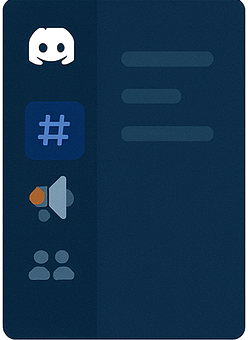
Find the Right Channels
Use channels for specific tasks:
- #dispatch-requests: new jobs notifications
- #support: ask coordinators for help
- #training: access our guides
- Customer channels: chat about your projects
5
Use Discord for Services
- Enable notifications for real-time updates
- Upload photos, documents, and forms
- Tag Field Force Coordinators for urgent help
- Reply to dispatch tickets right from Discord

6
Troubleshooting & Help
- Expired invite? Request a new one via support
- Can't see channels? Confirm your role has been assigned
- No notifications? Check your Discord notification settings
- Need extra help? Contact our support team
Steps: 1–6
Frequently Asked Questions
What if my invite link expired?
Contact us for a new invite or try the link above again; invite links may expire after a set time.
I can't see the correct channels, what should I do?
Ensure your roles have been assigned; message a Field Force Coordinator if you need access to specific channels.
How do I enable notifications?
Click the bell icon in a channel to set notifications; choose "All Messages" to receive every update.